
From CAD assembly to costed BOM: a practical workflow
How do you turn a CAD assembly into a costed bill of materials?
Export a supported assembly snapshot, match its components to stable part records and review the proposed structure and quantities. Add purchased materials and other items outside CAD, then evaluate the BOM against reviewed supplier prices and explicit cost assumptions. Importing geometry or structure alone does not establish a complete product cost.
A CAD structure and a costed product answer different questions
Scroll sideways to compare
| Input | Assembly snapshot | Cost review |
|---|---|---|
| Component identity | Source IDs, part numbers and assembly relationships. | Match the same physical part consistently across exports and supplier records. |
| Quantities | Occurrences and quantities within the supported export scope. | Check units, repeated instances and nested quantities. |
| Items outside CAD | Packaging, consumables and processes may be absent. | Add the inputs the intended estimate needs; record exclusions. |
| Commercial basis | CAD properties can supply some starting attributes. | Review currency, effective dates, quantity breaks and landed-cost assumptions. |
| Release decision | A snapshot records a source state. | Review changes and retain the intended revision or configuration separately. |
Establish stable part identity before importing
A filename or display label is not always a stable component identity. Decide how source component IDs and part numbers map to your product records, and preserve the same mapping when exporting the assembly again. Inspect repeated instances and shared subassemblies rather than assuming each visible object is a new purchased part.
ManyRows CAD imports retain source mappings and accepted import receipts. An identical accepted source version is a no-op. That history helps explain an import, but it does not create a live connection to the CAD application.
Review the snapshot before changing the BOM
Compare matched parts, new parts and proposed quantities with the engineering assembly. Check what the exporter includes and excludes. In ManyRows, a record-scoped import is restricted to that assembly, and omitted BOM lines are retained; omission from a snapshot should not be read as a confirmed deletion.
Local exporters exist for FreeCAD, Onshape, Inventor, Fusion and SOLIDWORKS. Runtime validation currently covers FreeCAD 1.1.4 saved Part/Link assemblies on macOS arm64. The four commercial adapters still require acceptance in their vendor runtimes. These are reviewed snapshot imports without background synchronization.
Add commercial evidence and check the full cost basis
A source property called cost can be a useful starting point, but confirm what it means: per piece or per pack, which currency, which quantity and which date. Separate a supplier quote from your own estimate, and preserve missing inputs as gaps instead of silently treating them as zero.
Use the same product to test the complete handoff from engineering to sourcing. A calculation can be arithmetically correct and still omit a packaging item or apply a price to the wrong unit.
- Review matched components, nested quantities and units against the CAD source.
- Add packaging, consumables and other required items outside the export scope.
- Connect supplier evidence and review price dates, currencies and quantity breaks.
- Inspect component contributions, missing inputs and any landed-cost assumptions.
- Retain the evaluated cost basis, then review and release the intended product revision separately.
Illustrative workflow
Example: a motorized conveyor module
Imagine a module with a frame, motor, rollers and fasteners in CAD. The product also needs packaging and purchased consumables. Importing the assembly establishes only part of the estimate; sourcing still needs the right motor quote and pack-to-piece quantities for the fasteners.
When the motor changes, review both its fit in the structure and its effect on cost. Keep the engineering decision and supplier evidence connected so a lower quoted price does not silently stand in for an approved component change. The industrial equipment walkthrough provides a fictional product context for this kind of review.
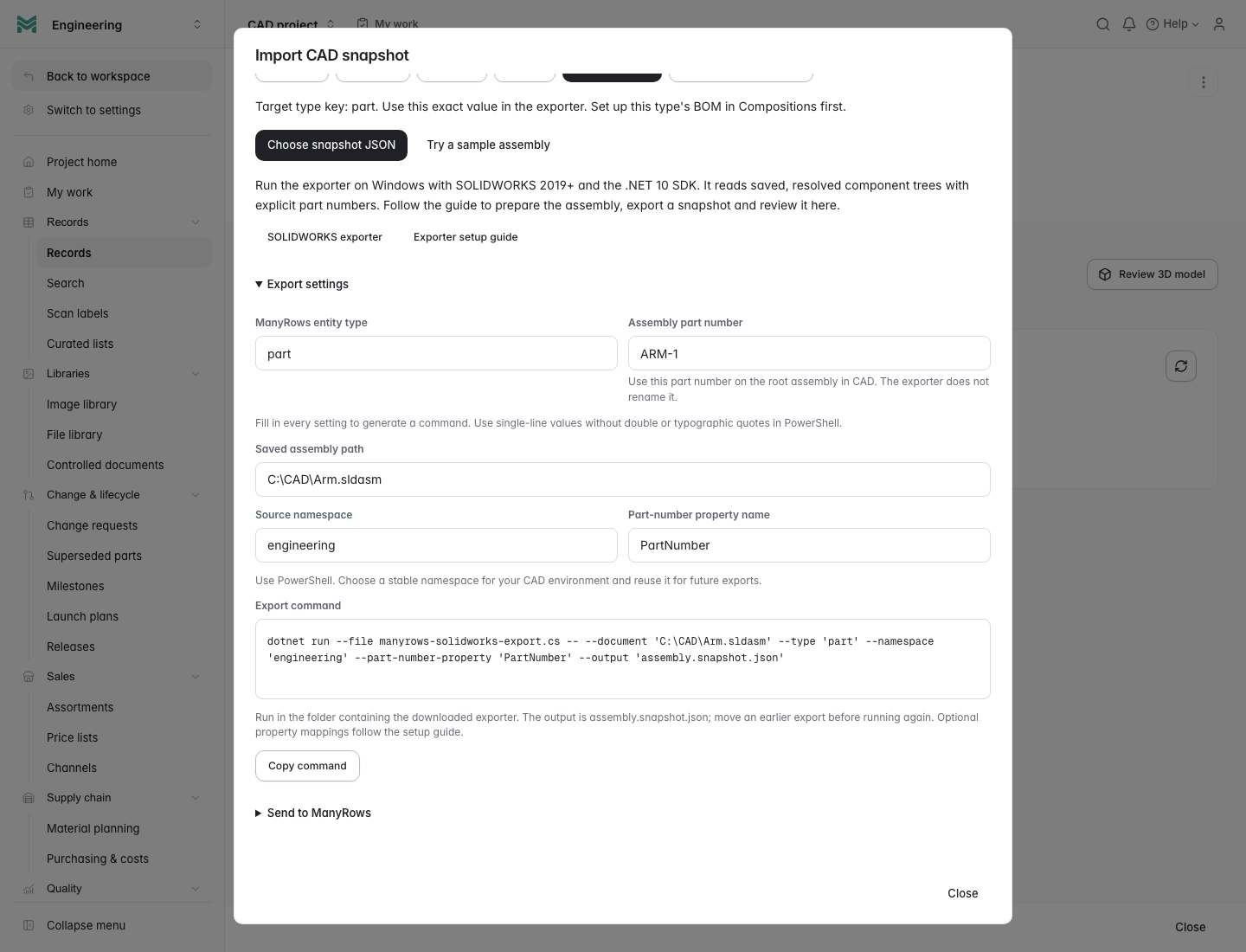
Where ManyRows fits
ManyRows is a candidate when you want to connect reviewed assembly imports with part records, BOM structure, supplier evidence and cost reviews. Keep your CAD application responsible for design geometry. Test your exact assembly type and exporter in its actual CAD runtime before relying on that handoff for production work.
Common questions
Does a CAD import automatically include every product cost?
No. Verify items outside CAD, supplier prices, units, quantities and commercial assumptions. A structure import does not establish that the estimate includes everything needed to build and deliver the product.
Will later CAD edits update ManyRows in the background?
No. The current workflow uses explicitly exported snapshots and reviewed imports. Prepare another snapshot, inspect the changes and apply them through the relevant review workflow.